When we login with our username & password into sharepoint site, it displays as a "System Account" instead of my username or my full name on the top right corner of the website. What ever changes i make inside the site, for example upload a file, post a comment, sharepoint marks it as a System account instead of my name.
To solve try the below
Method 1:
Go to Central Administration / Application Management. Click Policy for Web Application. Select your web app and click your account in the list. In the Edit Users page, clear the Account operates as System checkbox. That should fix this particular problem.
Method 2:
1. On the top navigation bar, click Operations.
2. On the Operations page, in the Security Configuration section, click Service accounts.
3. On the Service Accounts page, in the Credential Management section, under Select the component to update, select Web application pool.
4. In the Web service list, click a Web service.
5. In the Application pool list, click the application pool that you want associated with the Web application.
6. Under Select an account for this component, select one of the following:
Predefined Select this option to use a predefined account, such as the Network Service account or the Local Service account.
Configurable Select this option to specify a different account.
7. Click OK.
Method 3:
To fix this, you must run the following commands:
stsadm -o updatefarmcredentials -identitytype NetworkService
followed by:
iisreset
Friday, March 6, 2009

Thursday, March 5, 2009
"HTTP Error 503. The service is unavailable.
When you browse the Central admin page or SharePoint sites you may get "HTTP Error 503. The service is unavailable.
To solve check the below things...
1. Please check SQL server services running in which user account, If user might have changed the password it will happen. In properties --> Log ON --> changes the password.
2. In IIS, check the under sites whether Central admin page or SharePoint site manage web service stop or start. (Should be Started).
3. In IIS, and also check the under Application pools whether Central admin page or SharePoint site task services status. (Should be Started).
To solve check the below things...
1. Please check SQL server services running in which user account, If user might have changed the password it will happen. In properties --> Log ON --> changes the password.
2. In IIS, check the under sites whether Central admin page or SharePoint site manage web service stop or start. (Should be Started).
3. In IIS, and also check the under Application pools whether Central admin page or SharePoint site task services status. (Should be Started).
Thursday, February 26, 2009
How to change the default database storage location in SQL?
"How do I set the default database file path"I keep seeing this question in many forums. When you fire "CREATE DATABASE " T-SQL command without any parameters. The database will get created and its file will be located in some path, lets say "C:\Program Files\MS SQL\Data". But if you want to have the files located else where, lets assume "D:\SQL_Data\" then there are two options that you can think of.
1 - specify the file path in the "CREATE DATABASE" command or
2- set the default path location in server configuration.
For option one refere to BOL, here is how to workout Option-II: again there are two ways to do this task.
one, using GUI (Management Studio/Enterprise manager) - right click on server node, select properties from pop-up menu, look for "Database Settings" in that section there two boxes - one for LOG and other for DATA file. Key in the appropriate values and save it. This change will effect after stop & start SQL server.
The other way to achieve this configuration change is using T-SQL, as show below,
USE [master]
GO
EXEC xp_instance_regwrite N'HKEY_LOCAL_MACHINE', N'Software\Microsoft\MSSQLServer\MSSQLServer', N'DefaultData', REG_SZ, N'D:\SQL_Data'
GO
EXEC xp_instance_regwrite N'HKEY_LOCAL_MACHINE', N'Software\Microsoft\MSSQLServer\MSSQLServer', N'DefaultLog', REG_SZ, N'D:\SQL_Data'
GO
Yes, its instance specific registery entry that it takes to set this property. Here the command is using extended stored procedure "xp_instance_regwrite" to do the trick. This type of command can be used in cases where you want to standardise you SQL Server setup and you may want to add this step as a post installation procedure/batch file etc.
1 - specify the file path in the "CREATE DATABASE
2- set the default path location in server configuration.
For option one refere to BOL, here is how to workout Option-II: again there are two ways to do this task.
one, using GUI (Management Studio/Enterprise manager) - right click on server node, select properties from pop-up menu, look for "Database Settings" in that section there two boxes - one for LOG and other for DATA file. Key in the appropriate values and save it. This change will effect after stop & start SQL server.
The other way to achieve this configuration change is using T-SQL, as show below,
USE [master]
GO
EXEC xp_instance_regwrite N'HKEY_LOCAL_MACHINE', N'Software\Microsoft\MSSQLServer\MSSQLServer', N'DefaultData', REG_SZ, N'D:\SQL_Data'
GO
EXEC xp_instance_regwrite N'HKEY_LOCAL_MACHINE', N'Software\Microsoft\MSSQLServer\MSSQLServer', N'DefaultLog', REG_SZ, N'D:\SQL_Data'
GO
Yes, its instance specific registery entry that it takes to set this property. Here the command is using extended stored procedure "xp_instance_regwrite" to do the trick. This type of command can be used in cases where you want to standardise you SQL Server setup and you may want to add this step as a post installation procedure/batch file etc.
Wednesday, February 25, 2009
Failed to register SharePoint Services
When we run Windows SharePoint Products and Technologies Configuration Wizardduring installation, it failed and displayed error "Failed to registerSharePoint Services.An exception of the System.Runtime.InteropServices.COMException was thrown.Additional exception information: Could not access the Search serviceconfiguration database.
The cause and solution:
I looked at the log file, found that the process stopped at STEP 5Calling SPServiceInstance.Provision for instanceMicrosoft.SharePoint.Search.Administration.SPSearc hServiceInstance, serviceMicrosoft.SharePoint.Search.Administration.SPSearc hServiceI did this following steps and the configuration finished successfully.
1. On the Start menu, click Run. In the Open box, type regedit and thenclick OK.
2. In the Registry Editor, navigate to the following subkey, and then deleteit:HKEY_LOCAL_MACHINE\SOFTWARE\Microsoft\Shared Tools\Web ServerExtensions\12.0\WSS\Services\Microsoft.SharePoint. Search.Administration.SPSearchService
3. Run the SharePoint Products and Technologies Configuration Wizard again.
The cause and solution:
I looked at the log file, found that the process stopped at STEP 5Calling SPServiceInstance.Provision for instanceMicrosoft.SharePoint.Search.Administration.SPSearc hServiceInstance, serviceMicrosoft.SharePoint.Search.Administration.SPSearc hServiceI did this following steps and the configuration finished successfully.
1. On the Start menu, click Run. In the Open box, type regedit and thenclick OK.
2. In the Registry Editor, navigate to the following subkey, and then deleteit:HKEY_LOCAL_MACHINE\SOFTWARE\Microsoft\Shared Tools\Web ServerExtensions\12.0\WSS\Services\Microsoft.SharePoint. Search.Administration.SPSearchService
3. Run the SharePoint Products and Technologies Configuration Wizard again.
Tuesday, February 24, 2009
Backup / Restoring SharePoint 2007 Site from SQL Database
I got this excellent article on SharePointdogs for backup / restoring the SharePoint site from SQL DB :
http://sharepointdogs.wordpress.com/2008/07/30/content-migration-or-backuprestore-in-moss-2007/#comment-9
Here is one of defined approach which worked wonders for me :
USING SQL
Using SQL, Backup the SQL Content Databases which are required and Restore them to a new databases in the SQL and attach these databases to the new application.
(Briefly we can say that take your content db ‘Offline’ using the Central admin. Take the content database offline in SQL Studio (Take Offline context menu item). Copy your database mdf and ldf files to the new machine (the destination machine). Attach the copies on the new SQL server using SQL Studio. Add the copied content DB to the Web Application on the new machine using the Central Admin on the new web server.)
STEPS:
1)Find the content DatabaseThese are listed under Central Admin->Application Management->Site Collection List
2) Backup the content databaseYou could alternatively detach it, and copy it. Just doing a backup in SQL Server 2005 Management studio is easier.
3) Restore content database to new serverCopy the BAK file to new server. Create an empty DB in Management Studio, restore from backup, you may need to change an option in the “options” tabof the restore dialog to get it to work. (Overwrite db).
4) Create Web App on new ServerCentral Admin->Application Management->Create or extend Web App->Create New Web App.
5) Associate restored DB with new Web AppCentral Admin->Application Management->SharePoint Web Application Management->Content Databases->Remove Content Database from your new web app.
Now use STSADM to add restored DB to this web appc:\program files\common files\microsoft shared\web server extentions\12\bin on new server is where you can find the STSADM.run this command from there.
stsadm -o addcontentdb -url http://yourwebapp:port -databasename yourcontentdb -databaseserver yoursqlserver
6) Run ISSRESET from command prompt
http://sharepointdogs.wordpress.com/2008/07/30/content-migration-or-backuprestore-in-moss-2007/#comment-9
Here is one of defined approach which worked wonders for me :
USING SQL
Using SQL, Backup the SQL Content Databases which are required and Restore them to a new databases in the SQL and attach these databases to the new application.
(Briefly we can say that take your content db ‘Offline’ using the Central admin. Take the content database offline in SQL Studio (Take Offline context menu item). Copy your database mdf and ldf files to the new machine (the destination machine). Attach the copies on the new SQL server using SQL Studio. Add the copied content DB to the Web Application on the new machine using the Central Admin on the new web server.)
STEPS:
1)Find the content DatabaseThese are listed under Central Admin->Application Management->Site Collection List
2) Backup the content databaseYou could alternatively detach it, and copy it. Just doing a backup in SQL Server 2005 Management studio is easier.
3) Restore content database to new serverCopy the BAK file to new server. Create an empty DB in Management Studio, restore from backup, you may need to change an option in the “options” tabof the restore dialog to get it to work. (Overwrite db).
4) Create Web App on new ServerCentral Admin->Application Management->Create or extend Web App->Create New Web App.
5) Associate restored DB with new Web AppCentral Admin->Application Management->SharePoint Web Application Management->Content Databases->Remove Content Database from your new web app.
Now use STSADM to add restored DB to this web appc:\program files\common files\microsoft shared\web server extentions\12\bin on new server is where you can find the STSADM.run this command from there.
stsadm -o addcontentdb -url http://yourwebapp:port -databasename yourcontentdb -databaseserver yoursqlserver
6) Run ISSRESET from command prompt
Delete a SSP (Shared Service Provider) in a farm
You can only delete a SSP (Shared Service Provider) when you have installed SharePoint as a Farm. There are two ways to delete a SSP:
1) Via a browser: http:///_admin/deletessp.aspx?ssiId=
2) Via Command line: stsadm –o deletessp –title
Also keep in mind when you use number 2 it will not remove the two databases created for the SSP and SSP Search. This means you have to go into SQL Server to remove them your self.
1) Via a browser: http:///_admin/deletessp.aspx?ssiId=
2) Via Command line: stsadm –o deletessp –title
Also keep in mind when you use number 2 it will not remove the two databases created for the SSP and SSP Search. This means you have to go into SQL Server to remove them your self.
Thursday, January 29, 2009
Send Email with HTTP File attachment
Send Email with HTTP File attachment
This activity allows sending emails with attachments retrieved using a web request . Executing Reporting Services report and sending it as an attachment from within SPD workflow would be one such example. Request url is fully customizable and can include workflow variables. Both http and https requests are supported .

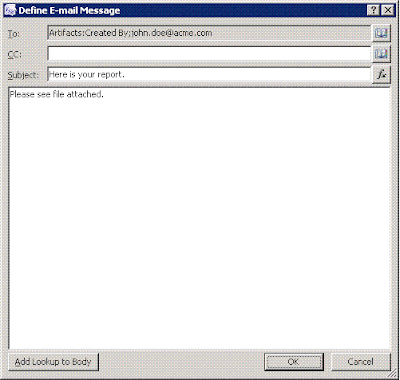
This activity allows sending emails with attachments retrieved using a web request . Executing Reporting Services report and sending it as an attachment from within SPD workflow would be one such example. Request url is fully customizable and can include workflow variables. Both http and https requests are supported .


How to run inline code in SharePoint aspx pages....
How to run inline code in SharePoint aspx pages....
"An error occurred during the processing of test.aspx. Code blocks are not allowed in this file".To enable this you need to modify the web.config file for your SharePoint Site Collection.
"An error occurred during the processing of test.aspx. Code blocks are not allowed in this file".To enable this you need to modify the web.config file for your SharePoint Site Collection.
Modify the web.config file
1. Open the web.config file and make the following change:

The PageParserPaths xml tags will be there already you just need to add the line in between.
2. Save web.config.
2. Save web.config.
How to Display Created By and Modified By User names in Custom form.
You Just need to add the SharePoint control to the particular page.

Steps to create Content page layout
Steps to create Content page layout
From site protal .
On the site actions menu point to site setting->Modify all site settings
under galleries click on Site Content Types click create-> Enter the Name "****" in the Name textbox, from Select parent content type dropdown select page layout content Types and from parent content type dropdown select Aritcle Page, In Group create New Group "****" then click ok.
Open the site in Sharepoint Designer
1. From File Menu point to New and then click on sharepoint Content
2. In New dialog box click on Sharepoint Publishing
3. Click on page layout
4. Under options, in the content Type Group list, click "****"
5. In the Content Type Name,Click "****"
6.In the URL Box type a name for the page layout as "****.aspx"
7. In the Title Box type a title for the page layout as "****"
8. Click OkThis layout page saves Automcalliy under _catalogs/Masterpage/
From site protal .
On the site actions menu point to site setting->Modify all site settings
under galleries click on Site Content Types click create-> Enter the Name "****" in the Name textbox, from Select parent content type dropdown select page layout content Types and from parent content type dropdown select Aritcle Page, In Group create New Group "****" then click ok.
Open the site in Sharepoint Designer
1. From File Menu point to New and then click on sharepoint Content
2. In New dialog box click on Sharepoint Publishing
3. Click on page layout
4. Under options, in the content Type Group list, click "****"
5. In the Content Type Name,Click "****"
6.In the URL Box type a name for the page layout as "****.aspx"
7. In the Title Box type a title for the page layout as "****"
8. Click OkThis layout page saves Automcalliy under _catalogs/Masterpage/
Subscribe to:
Posts (Atom)